Pycharm Development Environment
Pycharm is an IDE dedicated to developing python projects. It provides coding assistance and easy access to debugging tools as well as integration with py.test. It is a popular tool for working with VOLTTRON. Jetbrains provides a free community version that can be downloaded from https://www.jetbrains.com/pycharm/
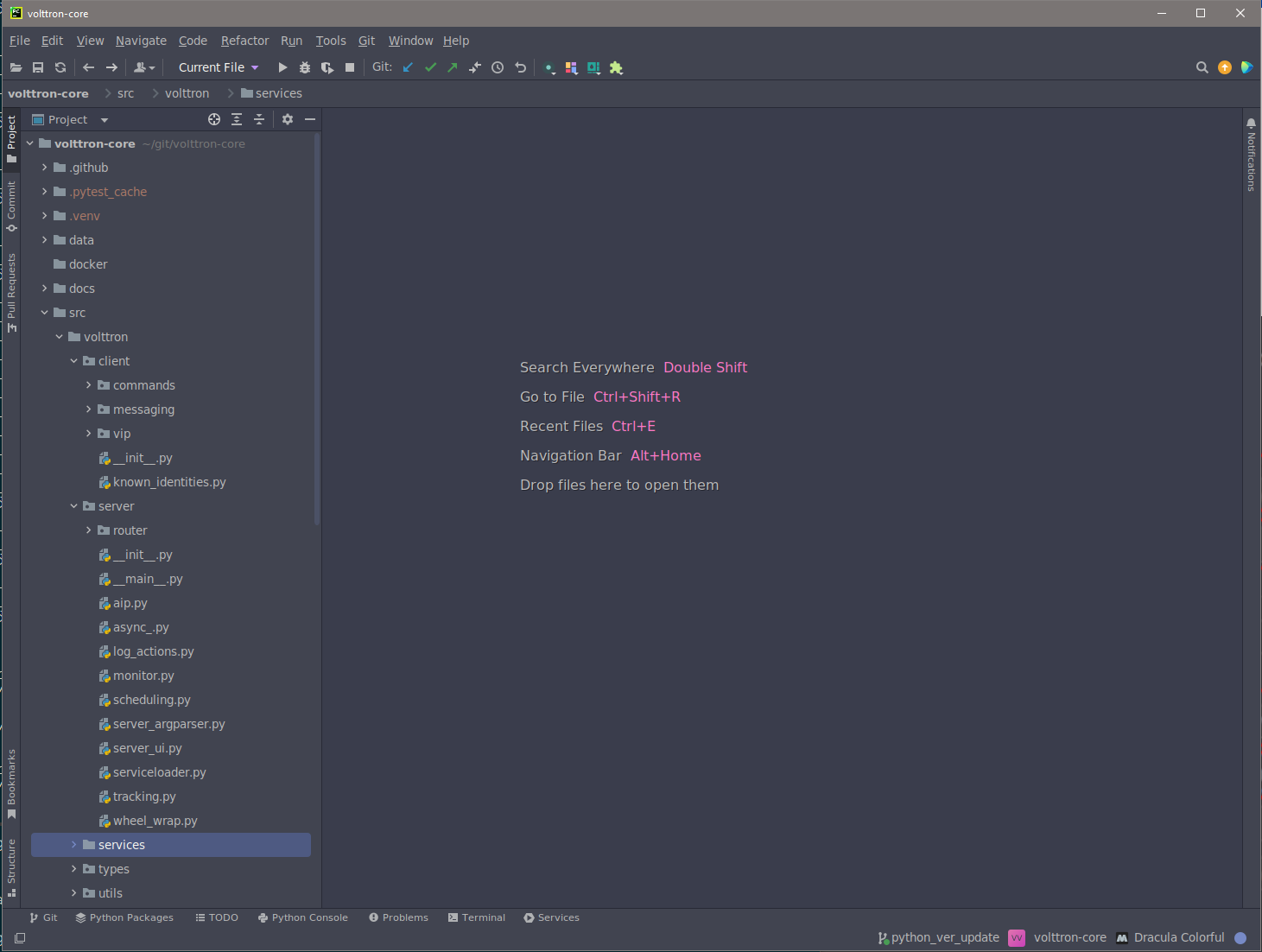
Open Pycharm and load volttron-core
Pycharm Setup
When launching Pycharm for the first time we have to tell it where to find the volttron-core source code. If you have already cloned the repo then point Pycharm to the cloned project.
Subsequent instances of Pycharm will automatically load the VOLTTRON project.
Note
When getting started make sure to search for gevent in the settings and ensure that support for it is enabled.
Set the Project Interpreter
This step should be completed after running poetry install on your volttron-core source root.
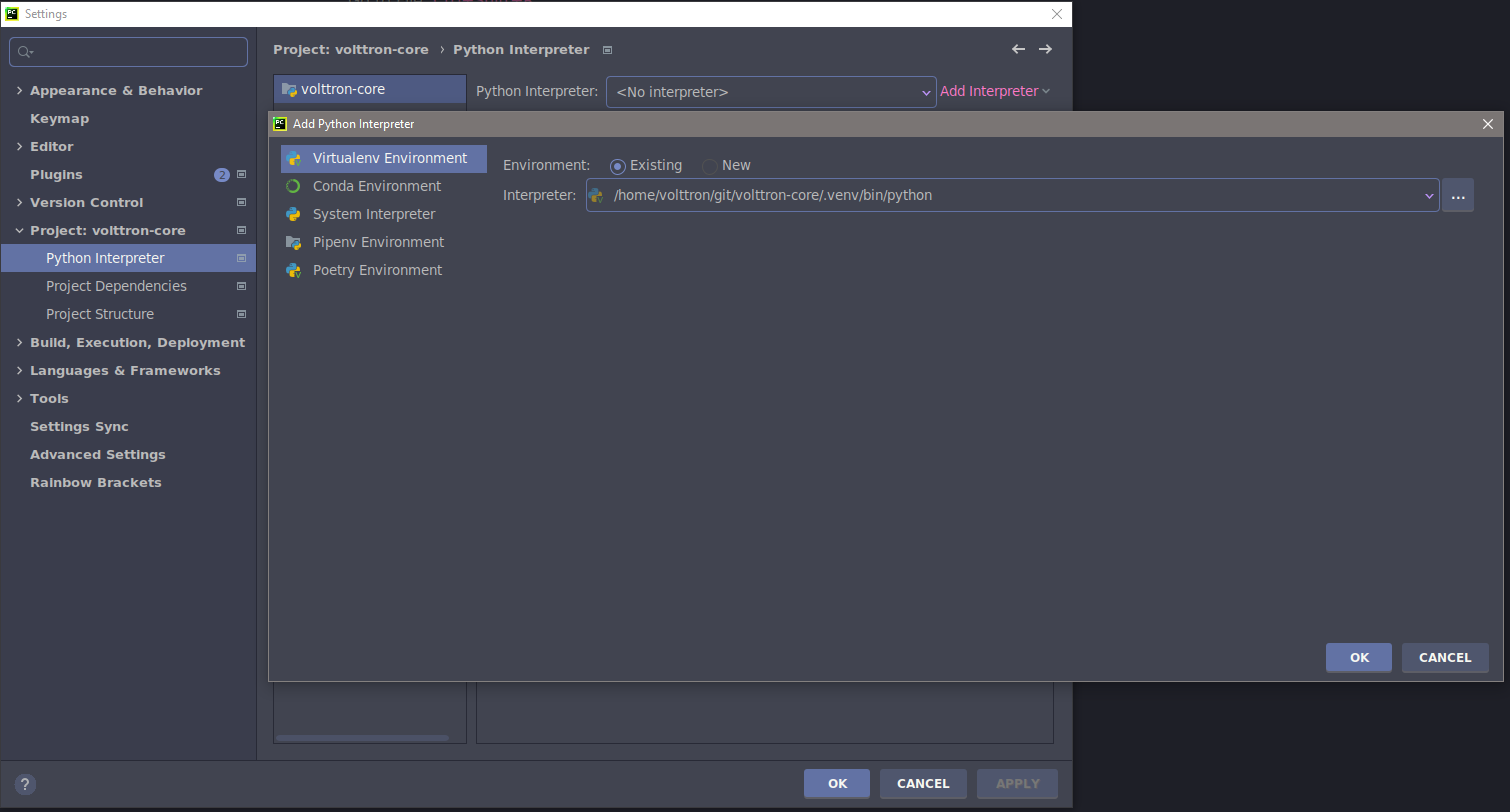
Pycharm needs to know which python environment it should use
when running and debugging code. This also tells Pycharm where to find python
dependencies. Settings menu can be found under the File option in Pycharm.
Running the VOLTTRON Process
If you are not interested in running the VOLTTRON process itself in Pycharm then this step can be skipped.
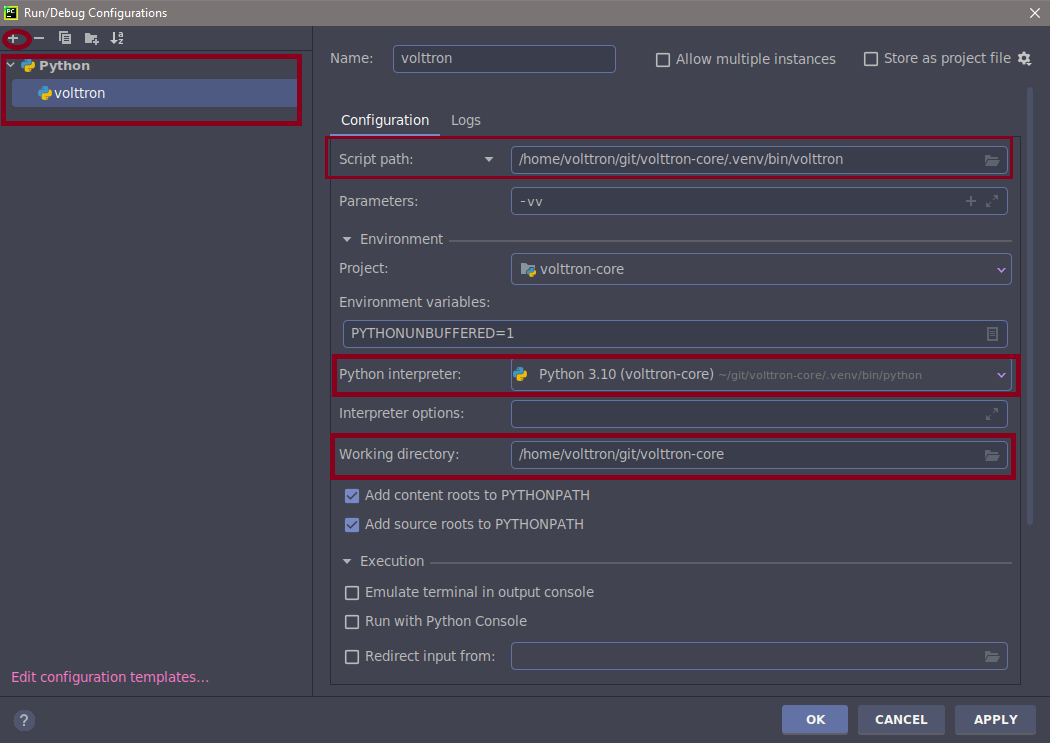
In Run > Edit Configurations create a configuration that has <your source dir>/.venv/bin/volttron in the script field, -vv in the script parameters field (to turn on verbose logging), and set the working directory to the top level source directory.
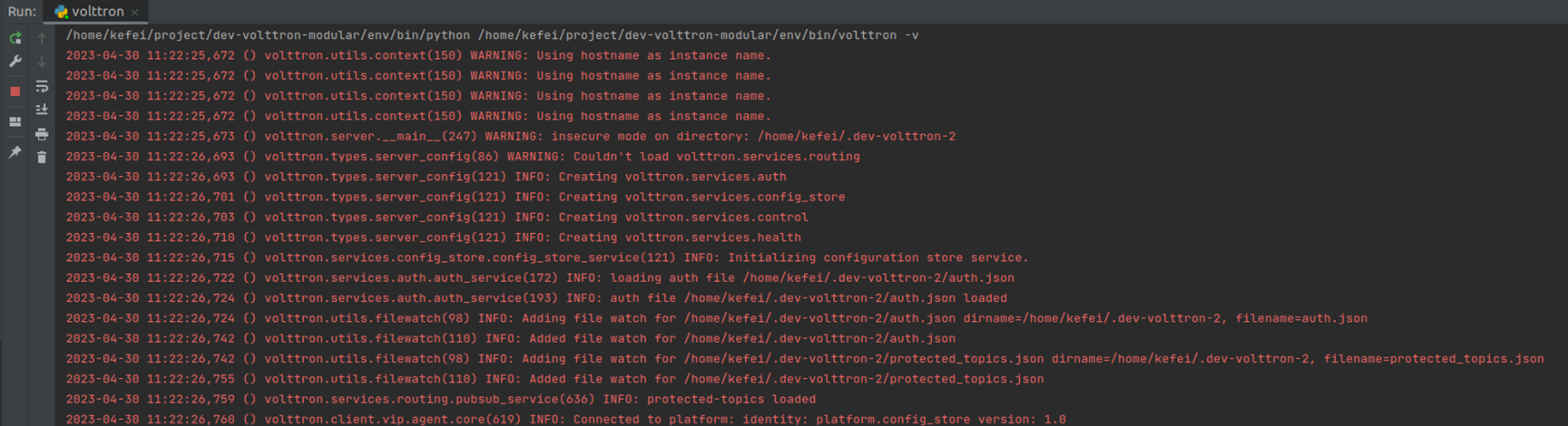
VOLTTRON can then be run from the Run menu or as shown in the image below

Result